



Every top Al model in one place.
Built for Mac developers and power users.

Oops! Something went wrong while submitting the form.
Key Takeaways
300 credits a month won't last. 3,750 will. Upgrade to Setapp AI+ and use BoltAI, TypingMind, Elephas, and more without hitting the wall — free for 7 days.
I’ve had several AI apps installed on my Mac for a while now, and I use different ones for different tasks. But for a long time, I never realized what actually made them different. Once I figured it out, choosing the right LLM for Mac became much easier.
In this guide, I’ll explain what LLMs are, how they work on Mac, and the tools I use to get the most out of them.
===> START BANNER <===
BoltAI is more useful when you're not watching the credit counter
The AI Enthusiast plan gives you 3,750 credits a month — enough to invoke AI dozens of times a day without thinking about it.
Button: Try BoltAI Free
===> END BANNER <===
LLM is short for large language model. It’s a computer program that’s been trained with enormous amounts of data to understand how words connect to each other. In practical terms, think of LLMs as a car engine — ChatGPT, Claude.ai, and Mac AI apps are the body. The engine determines capability; the body determines the experience.
For example, it knows that “Paris” and “France” or “Capital” have a strong connection. “Paris” and “Banana” don’t.
The text data also helps it understand the human language, which it now uses to communicate with us. When you ask a question, it uses the stored patterns to write, explain ideas, and perform other text-based tasks. Some examples of LLMs, or just models, are GPT-5.4, Fable 5, and Gemini 3.6.
In the context of using LLMs on Mac, you can think of them as the engine of a car. But for the engine to work, it needs a body. And that’s where ChatGPT, Claude.ai, Gemini.com, and Mac AI apps come in. These determine how you access the LLM and the general experience. Just the same way the body of a car determines the features and comfort level, despite sharing the same engine as another car.
In my case, there are times I use GPT-5.2 through the web. Other times, I use it through an app to create reusable templates and invoke the LLM wherever I am on my Mac. The model is the same, but the functionalities are completely different.
The apps below have earned their spot in my workflow, and I use each for a slightly different reason, even when they share the same models.
BoltAI Mac app is the AI tool I use most because it saves me from constantly jumping between windows.
Normally, when most people want to summarize text or explain text with ChatGPT, they Highlight > Copy > Switch to browser > Go to chatgpt.com > Write a prompt > Paste.
To simplify my work, I just highlight the text and press Control + Space to invoke BoltAI. It gives me several options based on prebuilt prompts, and I can just click “summarize” or “explain this” and get a result.
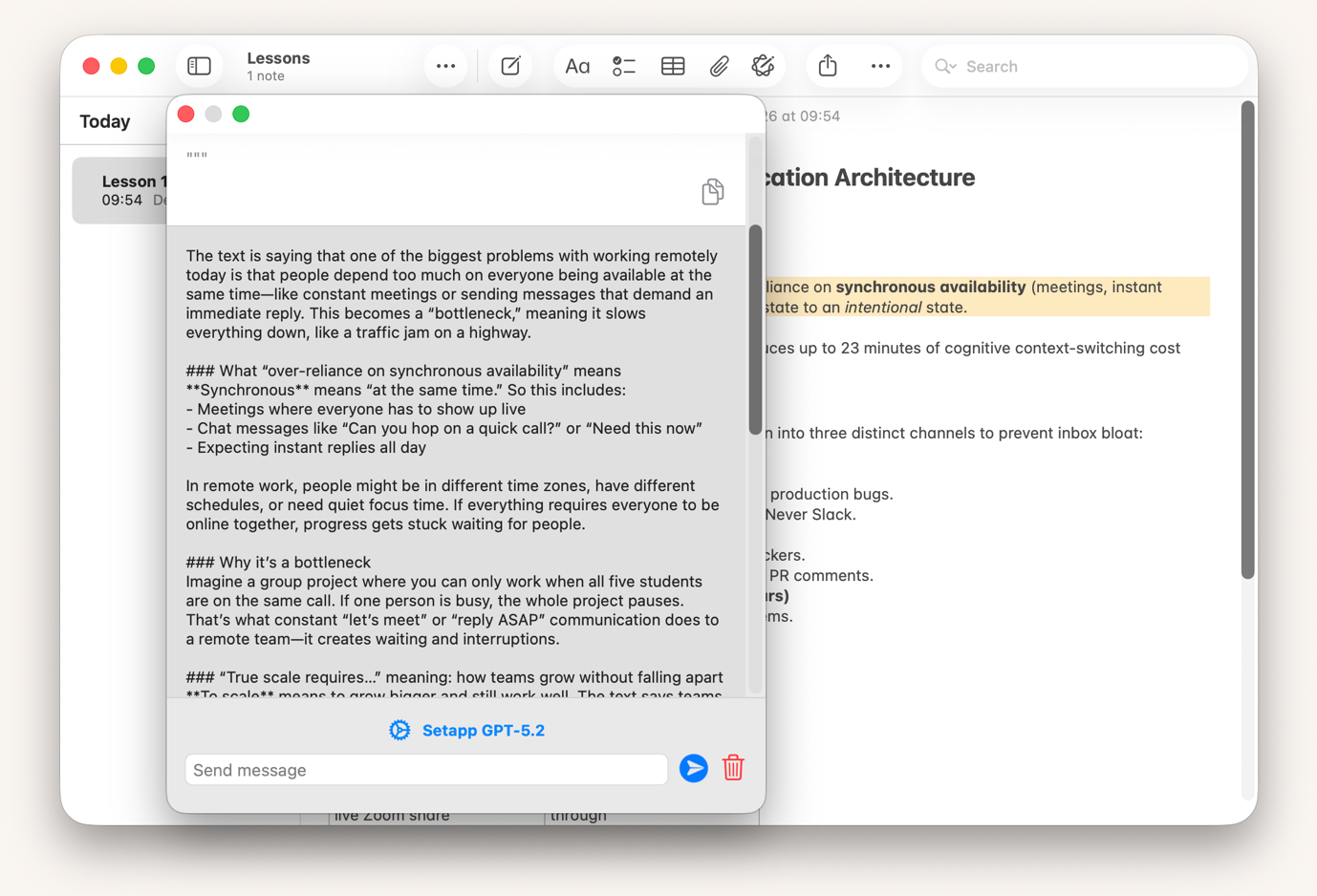
I've been using BoltAI's custom prompt feature for about three months now, and the one that saves me the most time is a rewriting prompt built around a specific editorial voice. The fact that it fires inside any text field is what sets it apart from every other AI tool I've tested on Mac.
The app comes with several prebuilt prompts, but I’ve also added a few others for the tasks I often carry out – like rewriting in a particular voice. It’s just the regular GPT LLM, but with a much more intuitive interface that doesn’t break my flow during focus sessions.
===> START BANNER <===
Switching between GPT, Claude, and Gemini eats credits fast
AI Enthusiast gives you 3,750 credits a month — enough to run multi-model comparisons daily without rationing.
Button: Try Setapp AI+ Free
===> END BANNER <===
If you’ve used ChatGPT, Claude, and Gemini consistently, you might have noticed that they answer the same questions differently.
While using them for daily work, I’ve ended up creating lanes based on the parts of my work where each shines. Sometimes, I also send the same ChatGPT request to other models, as Claude tends to add deeper reasoning, and Gemini is always good at automatically fact-checking from the internet.
But instead of switching between three tabs, I use TypingMind Mac tool to access them. When starting a chat, I can choose the model I want to use. If I want to see how another model performs, I can just switch mid-chat.
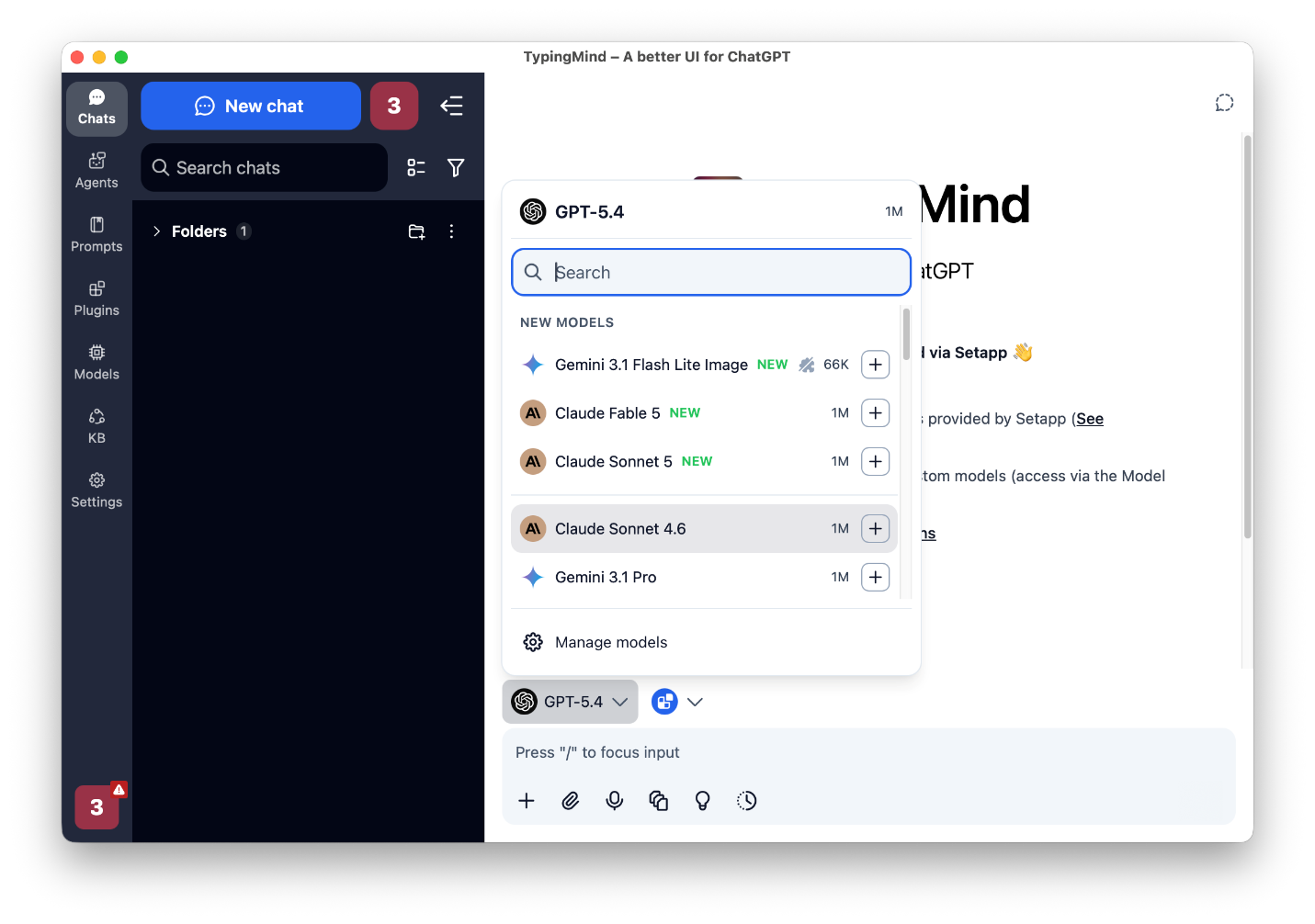
Only the three main models are activated by default, but I’ve also enabled Moonshot AI from settings as I find its technical side quite advanced (for tasks like coding). There are also 20 other models to choose from.
The biggest advantage of using the app is that I don’t have to constantly switch between tools or browser tabs just to use different models.
Elephas adds a different spin to my LLM use by letting me work from my own information instead of general AI knowledge.
It operates on what it calls “brains,” which are essentially knowledge bases you can build. I have several that I use to avoid manual processes.
For example, I’ve created a knowledge base for my meetings, and I always import the latest meeting summaries and transcripts. If I want to confirm something we discussed two months ago, I just need to ask Elephas instead of digging through documents.
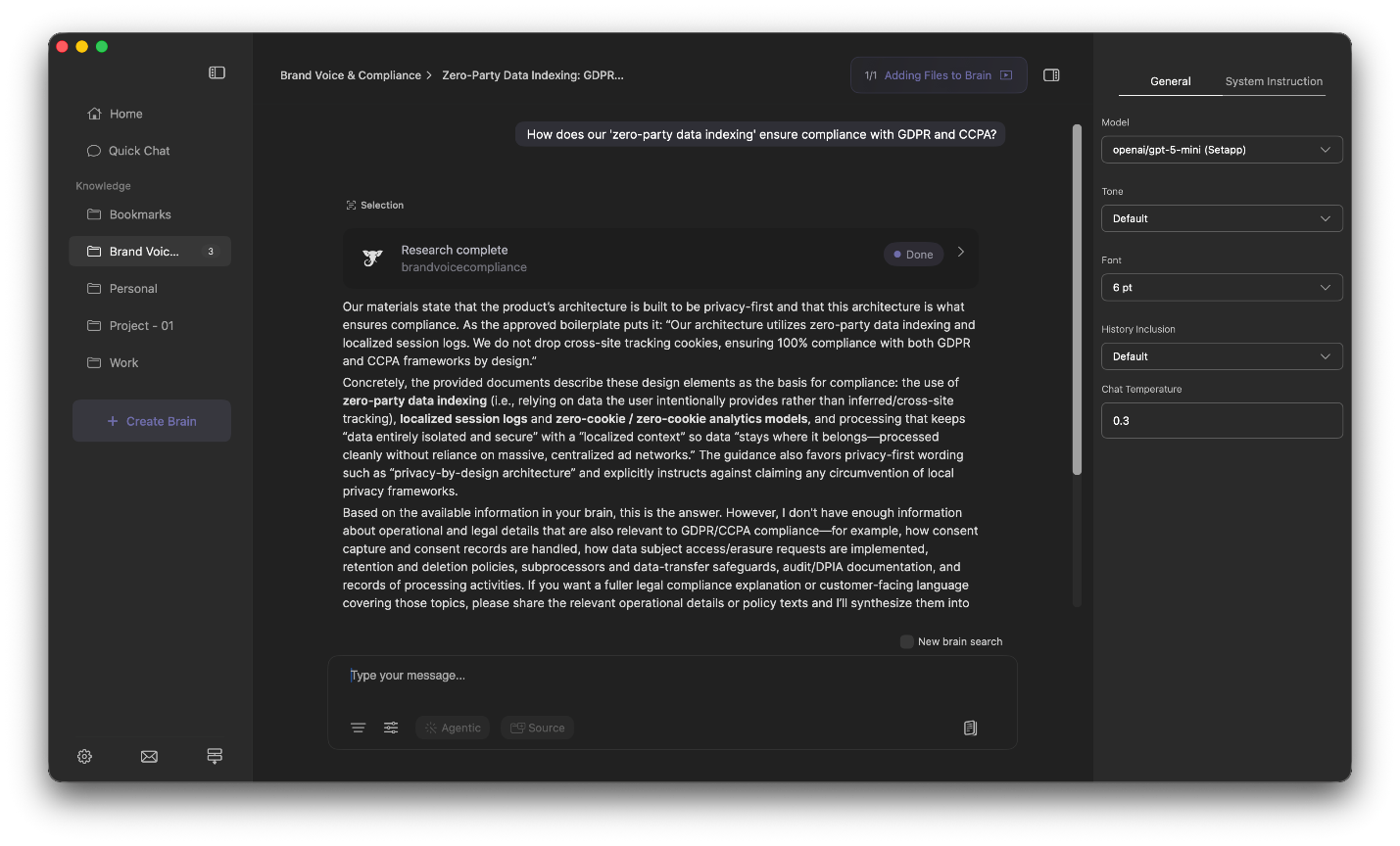
The knowledge base I'm most glad I built is one I didn't plan to use much. I added our product strategy docs on a whim, and six weeks later used it to answer a stakeholder question I'd otherwise have had to dig through six documents for. That use case (ad-hoc institutional memory) doesn't get talked about enough.
There are days when I need to go through a 50-page report or a research paper, and I know I don’t have to read every single page. Instead of scrolling through the document to find one answer, I just ask PDF Pals questions in plain English. It uses a GPT-5 LLM to craft my answer.
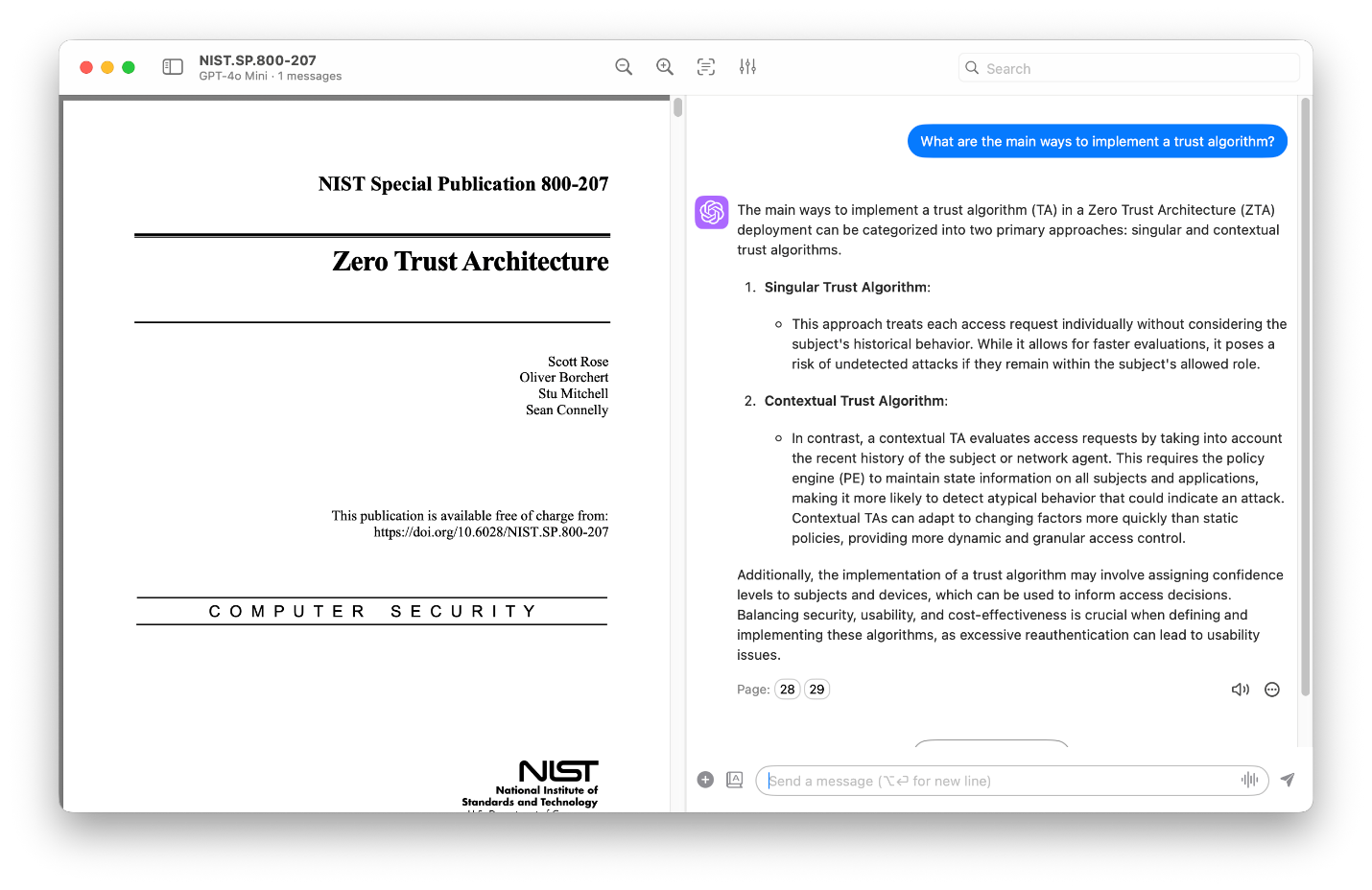
What I like most about the app is that it relies exclusively on the information contained in the PDF, something I find useful for accuracy as AI models can always hallucinate. It even specifies the specific pages where it got the answers, and you can click on them to verify the text that’s been used to craft your answer.
I often record my meetings for later reference. I also ask for the recordings when I miss a meeting to ensure I’m updated before the next one.
But then, I don’t want to sit through an entire hour taking notes when the reason I missed the meeting was to work on more productive tasks.
I use WhisperTranscribe to turn the recordings into transcripts. Once the audio is converted to text, I can then manipulate it in the same app using built-in GPT LLMs.
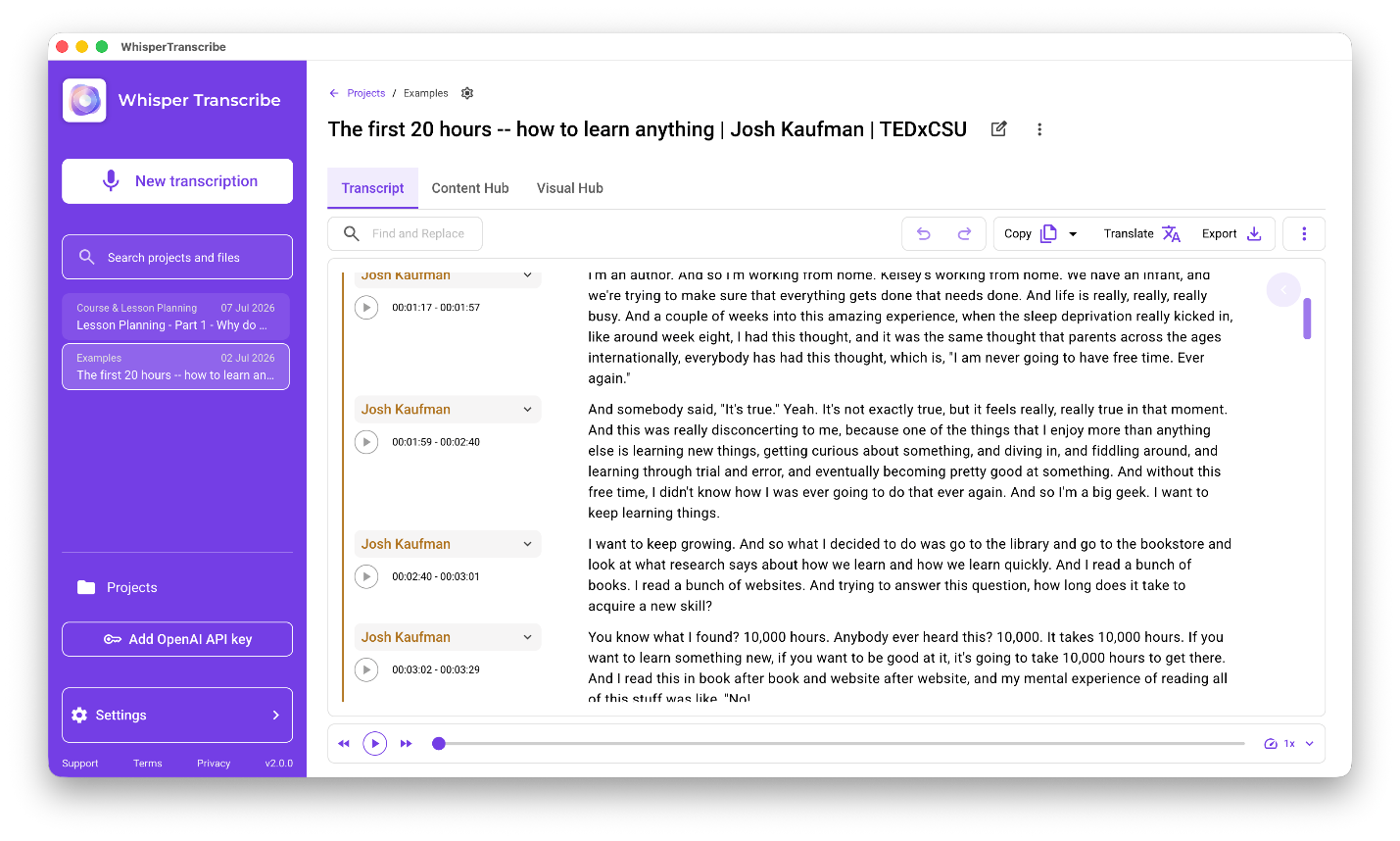
The first thing I always ask for is a detailed summary, which I then save into my Elephas knowledge base for future reference.
Sometimes, I also ask WhisperTranscribe to help me come up with article ideas based on a creative meeting or even generate a blog draft based on an idea that was discussed.
The best LLM app for Mac depends on how you work:
Here’s the setup I’d recommend based on different workflows.
===> START TABLE <===
| Use case | Recommended app | On Setapp |
| Inline AI across any app | BoltAI | ✓ |
| Multi-model chat with your own API keys | TypingMind | ✓ |
| Writing with your own knowledge base | Elephas | ✓ |
| Chatting with PDFs | PDF Pals | ✓ |
| Transcribing audio and video | WhisperTranscribe | ✓ |
===> END TABLE <===
Now that we’ve looked at how to use LLMs on Mac, here are some tips that have made the biggest difference for me.
You can say “summarize this,” and any LLM will do it. But what kind of summary do you want?
Instead of comparing how different LLMs summarize it based on their own judgment, provide more context.
For example, you can say, “summarize this article in five bullet points for a team meeting.” Not just “five bullet points.”
This way, the AI will keep in mind that you’ll need to reference the points when talking to people.
We talked about LLMs learning patterns, but patterns are predictable. When I’m working on something valuable, I treat the first AI answer as the “generic” output or the first draft.
Based on the output, I then ask the model to make changes. Maybe adjust the tone, make it shorter, or explain something in more detail. A short follow-up significantly improves the quality of the output.
I often use the same prompts over and over. But I realized that when I’m retyping, I tend to leave out some details to avoid wasting time.
I’ve now saved the prompts I use to summarize meeting notes and brainstorm headlines, among others. I’ve saved some as templates in specific AI apps like TypingMind where I use them, while others live in my clipboard app.
Most of my everyday AI work happens in the cloud because the latest models are always the most capable. But when I’m working on sensitive documents containing financial or personal data, I use a local model to ensure the data doesn’t leave my device. It also lets me run an LLM on Mac without an internet connection, and is one of my favorite parts of Apple silicon Macs.
LLM tools for Mac fit well alongside the productivity apps I already use, so I don’t need to open a browser tab every time I need text summarized. They don’t even affect performance, as most Mac AI chat apps are cloud-based.
Essentially, these are just an interface that connects to an LLM through API keys. All the heavy processing is handled outside your Mac, just like it is when using ChatGPT on the browser.
Apart from that, Apple silicon Macs are designed to be efficient enough to run AI models smoothly. If your M-series Mac has 16 GB+ unified memory, it can run open-source models locally. You can use a tool like Ollama to download and run offline AI models to process sensitive data privately.
Now that I’ve been using AI tools for a while, I’ve learned that the same LLM can work differently depending on the app you are using. This means that the best LLM app for Mac is the one that fits your workflow.
BoltAI is powered by GPT just like ChatGPT, but it lets me use the LLM without opening a new app or browser tab. TypingMind lets me compare outputs from different LLMs, and Elephas makes it possible to query my own knowledge base. PDF Pals and WhisperTranscribe then save me time on documents and recording.
I don’t pay for these apps separately or even use API keys, as they are all part of the Setapp AI+ collection — a curated set of apps that run on Setapp's built-in AI credits, so you don't need separate API subscriptions for handpicked Mac, iOS, and web apps. You can check them out via the platform’s 7-day free trial at no cost and see the combination that works best for the way you use your Mac.
Five AI apps. Unlimited potential. One catch: 300 credits go fast. Setapp AI Enthusiast gives you 3,750 credits a month — AI Expert gives you 7,500. Both plans include the full AI+ app collection. Try either free for 7 days. Explore Setapp AI+ Plans.
An LLM is the AI model that understands and generates language. E.g., GPT, Claude, and Gemini. An AI chat app is the tool you use to interact with that model, such as BoltAI. Some AI chat apps like TypingMind even let you access and switch between multiple models.
Yes, you can run an LLM locally on your Apple Silicon Mac with 16 GB+ unified memory. The two most popular Mac tools are Ollama and LM Studio.
It depends on the app. Some apps include AI models as part of their subscription, while others require API keys. If you got the app through Setapp, you can run it with Setapp’s monthly AI credits.
The best app for Mac depends on how you work. If you want to access LLMs anywhere on your Mac, the best app for using LLM on Mac is BoltAI. If you prefer to have many models in one place, go with the TypingMind Mac app.
Yes, BoltAI, TypingMind, Elephas, PDF Pals, WhisperTranscribe, and others are included with a Setapp membership. You can start with a free trial to see the apps that fit your workflow best.
