



Every top Al model in one place.
Built for Mac developers and power users.

Oops! Something went wrong while submitting the form.
Switch between popular and novel models to compare inputs. Plus, you can use expert agents and reusable prompts.
Use your own knowledge base or query PDFs without manually providing context.
20+ AI tools, one subscription
Setapp's AI Enthusiast plan gives you 6,000 monthly credits to use across BoltAI, TypingMind, Elephas, PDF Pals, and more — no API keys needed. Try it free for 7 days.
I used to dismiss AI as “too generic” whenever it gave me a disappointing answer. I’d then hop between models trying to get better results, but I later realized that the problem was my prompts.
After spending time watching a few Anthropic seminars and experimenting with prompts, I started getting better results. I’ll show you the prompt engineering for Mac techniques I use every day, along with the apps that make the process easier.
==> START BANNER <==
Build a complete AI workflow
Access 20+ AI apps (from a suite of 270+ apps) with 6,000 monthly credits — no API keys, no juggling subscriptions.
Button: Explore Setapp AI+
==> END BANNER <==
Prompt engineering is simply giving an AI model enough direction to produce the quality and type of output you want. That can mean assigning it a role, explaining the context, asking for a specific format, or showing an example of the output you expect.
It's less technical than it sounds. If you’ve ever typed a request into ChatGPT, Claude, Gemini, or any other AI app, you’ve already done a bit of prompt engineering. The only difference is that you need to structure your prompt in a certain way to get a more useful answer.
To get the best results, I always ensure I give an AI model concrete prompts. Otherwise, it will just default to its basic reasoning and provide a superficial answer.
The first change I made was to start telling AI who I wanted it to be. It sounded corny at first, but I found that it’s a very effective technique because it gives the model a point of view before it starts responding.
The role I give it varies depending on the type of work I’m doing.
For example, when I need help refining an email, I don’t type:
Refine this email.
Instead, I write something like:
You are a senior customer success manager. Rewrite this email to make it sound warm, confident, and professional.
It now knows what I’m aiming for, so the result won’t be generic.
You know why you are asking for something, but the AI doesn’t, at least until you tell it.
When you give an LLM a sentence or two on why you are writing a request, it significantly changes the answer.
Instead of:
Summarize this report.
Try something like:
I’m presenting this report to our leadership team tomorrow. Summarize it in five bullet points that focus on business impact and the recommended actions.
In this case, the AI will optimize the summary output for a presentation instead of guessing what matters.
Besides describing the task, I always specify the format.
Instead of:
Compare these two Mac apps.
I write something like:
Compare these two Mac apps in a side-by-side table. Include pricing, best use case, and one drawback for each. Add a column for free trial, with just X or a tick emoji.
If you know the format, include it in your prompt to avoid a lot of back-and-forth. This will also reduce the amount of work you need to do refining the answer.
Sometimes, you just can’t come up with the right words to describe the result. Or maybe the AI doesn’t seem to understand what you are aiming for.
In that case, I give it an example of similar results. This technique is known as few-shot prompting.
So, instead of:
Rewrite this paragraph in the style I’ve saved in memory.
I give the AI a precise reference point:
Here’s a paragraph I’ve written before that matches the style and tone I’m looking for. Rewrite the text below to sound similar.
I use this one a lot when I’m writing articles and want the tone to be consistent. I go even further for long texts. Instead of providing everything in one prompt, I first give the AI my example and ask it to analyze it. I then tell the model to use that style to rewrite the text I’ll give it.
One thing I’ve noticed when writing long texts is that the results tend to be scattered when the model tries to do too much.
When I want to write an article draft, I don’t tell ChatGPT or Claude to “write an article on consumer behavior.”
Instead, I break it into parts:
I find that this method produces better AI results while also giving me more control over the final result.
Learning how to write better prompts on Mac goes beyond the prompts themselves to the Mac apps you use. The best Mac AI apps remember your instructions, bring context automatically, and allow you to reuse the prompts you’ve already created.
Below are the apps I use to maximize prompt engineering on Mac.
The biggest challenge I faced when learning prompt engineering for Mac was writing the same prompt 10 times a day. I first tried saving the prompts in my notes app to avoid forgetting details, but this meant constantly switching between apps.
I eventually solved the challenge by using BoltAI. Right after installing the app, it gave me 15+ experts I can switch between. Each is fully customized, so I just switch between them before I write requests.
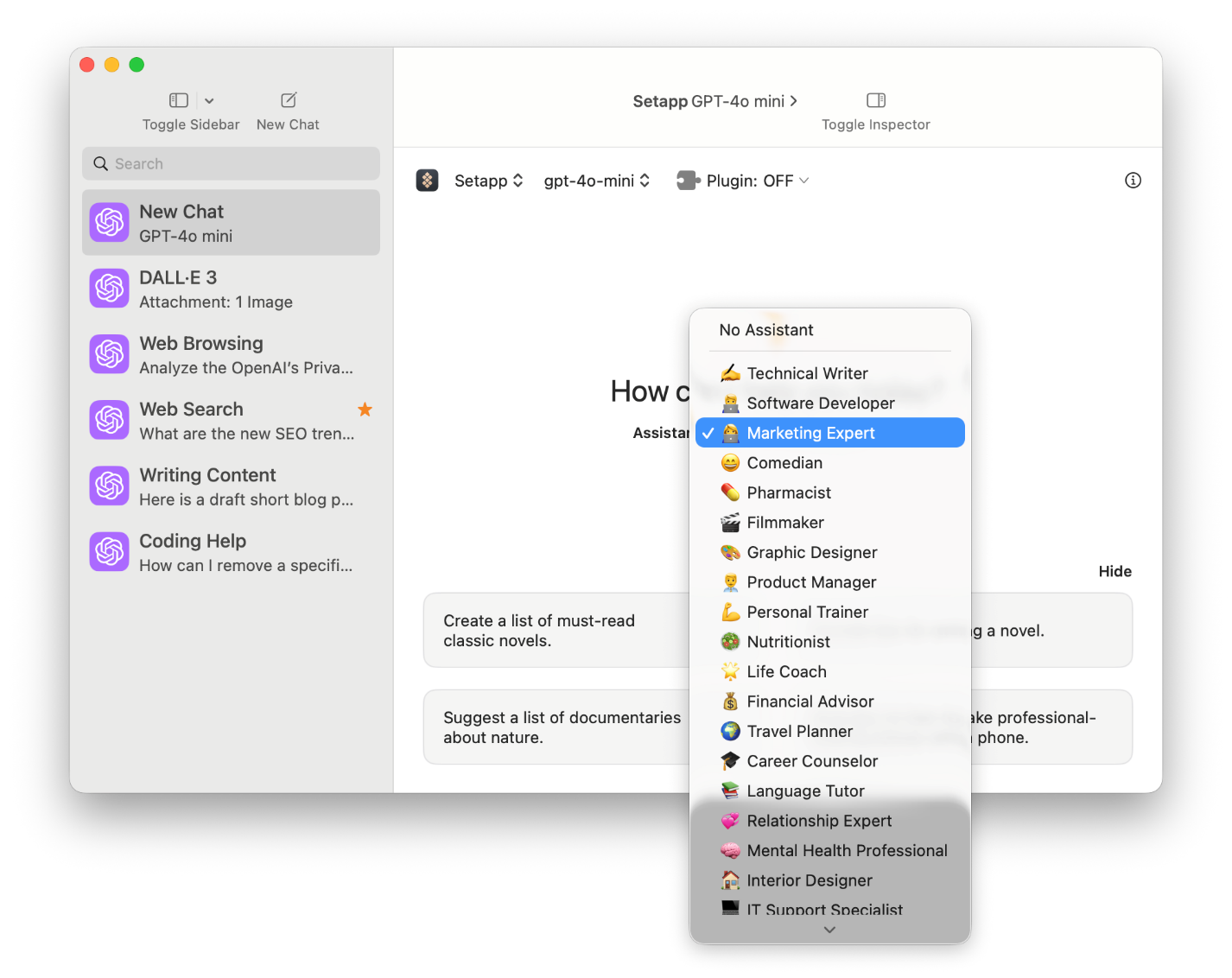
I’ve also created a few custom BoltAI prompts because the app works from anywhere on Mac. When I’m writing in MS Word or replying to an email in my browser, I just highlight my text and hit Control + Space. This invokes BoltfAI’s floating functionality and lets me choose from my saved prompts without opening the full app.
I often use this functionality when rewriting text. It saves me from switching apps, typing a prompt, and even copy-pasting the original text.
When I want to work from within the AI chat app, I use TypingMind. The app’s context-building is very powerful and includes 20+ ready-made agents.
I’ve enabled a few of these and also created a custom editorial agent I use to brainstorm content ideas and create briefs. I’ve also saved several prompts I reuse within the agents.
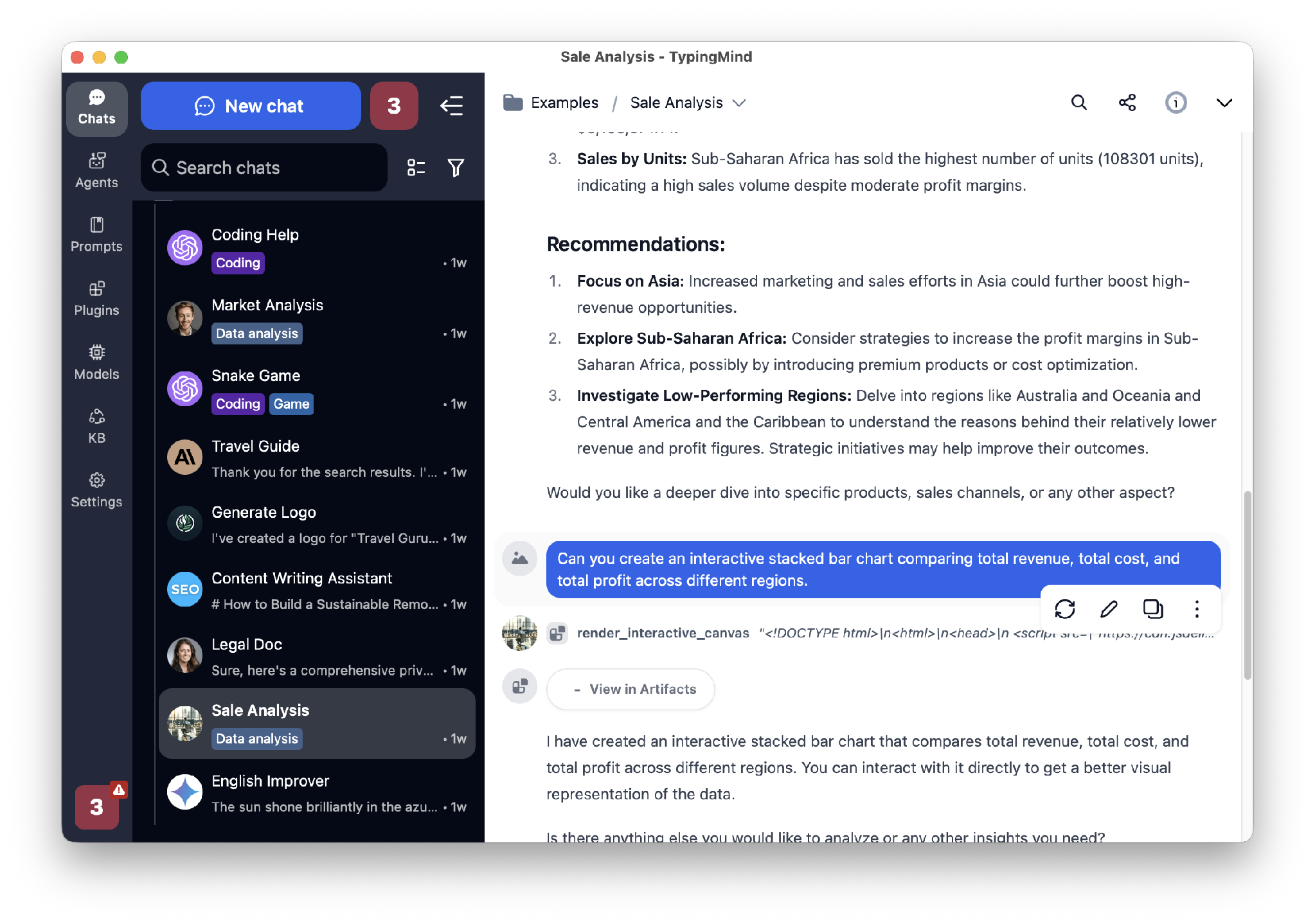
Besides the customization, I particularly like TypingMind for bringing together different AI models.
When I’m working on something important, I use the app to switch between GPT, Claude, and Gemini, depending on what I want to accomplish. I find ChatGPT to be much better at creating outlines, but Claude often produces the strongest draft. Gemini then gives me angles that neither ChatGPT nor Claude did.
==> START BANNER <==
More room for your AI prompts with Setapp
Heavy context uses more credits. The AI Enthusiast plan gives you 6,000 each month — enough for longer chats, richer context, and bigger projects.
Button: Start 7-Day Free Trial
==> END BANNER <==
Instead of pasting multiple documents into every chat, I use Elephas to build proper context.
The app’s biggest strength is what it calls “brains,” which are knowledge bases you can build with your documents. This means that every time you start a chat within a particular brain, the AI tool already has all the context it needs.
I've found this quite useful when working with long-term projects. Regular chats often lose context, but Elephas chats don’t. Every time I ask a question or send a writing request, it first checks the stored documents for relevant information, then works its magic.
For example, I can ask about something that was discussed in a meeting 3 weeks ago.
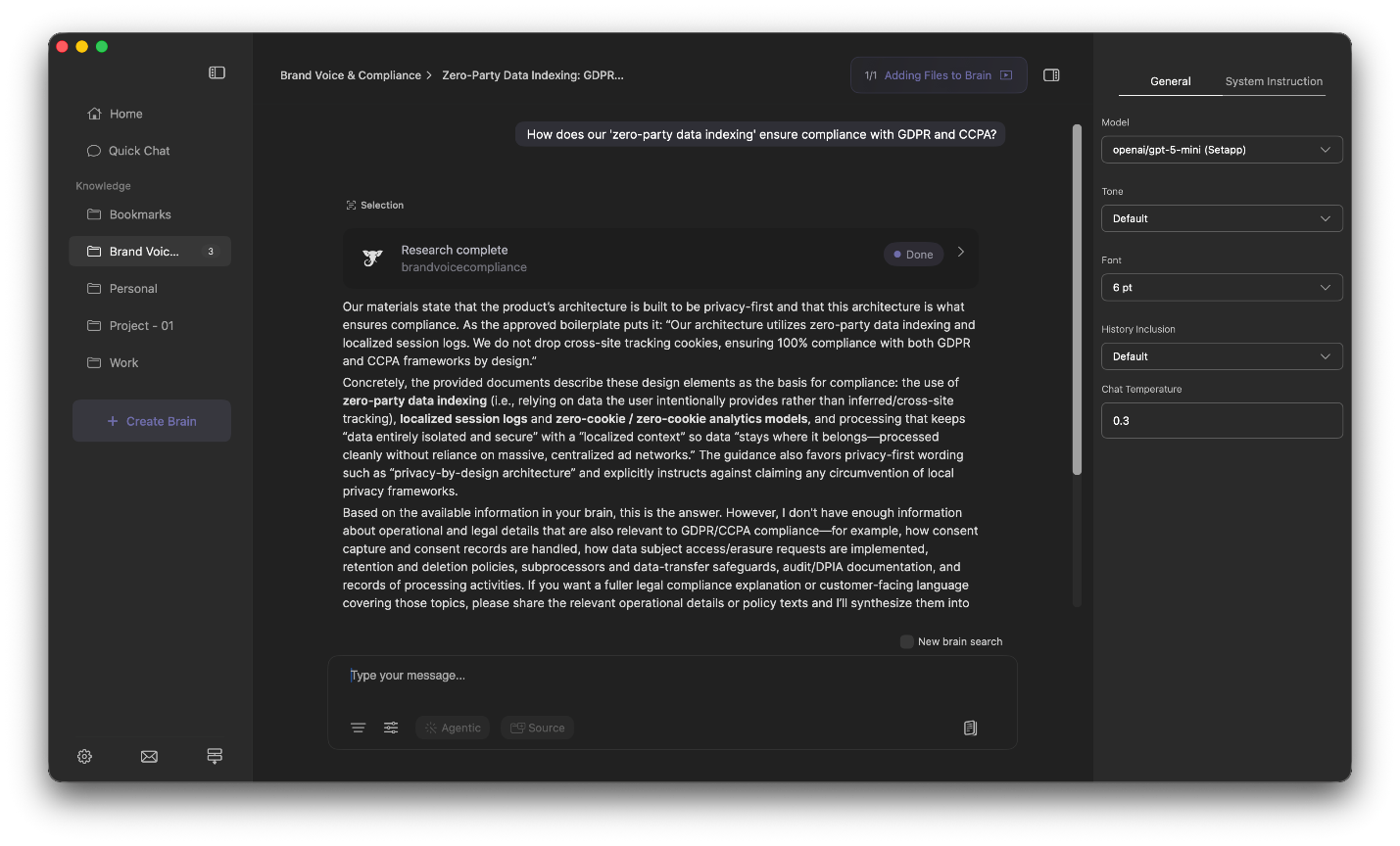
From there, I can even ask the AI to draft an article based on the specific information.
When working with long PDFs, I always have trouble giving an LLM enough context without pasting 92 pages of text into the chat.
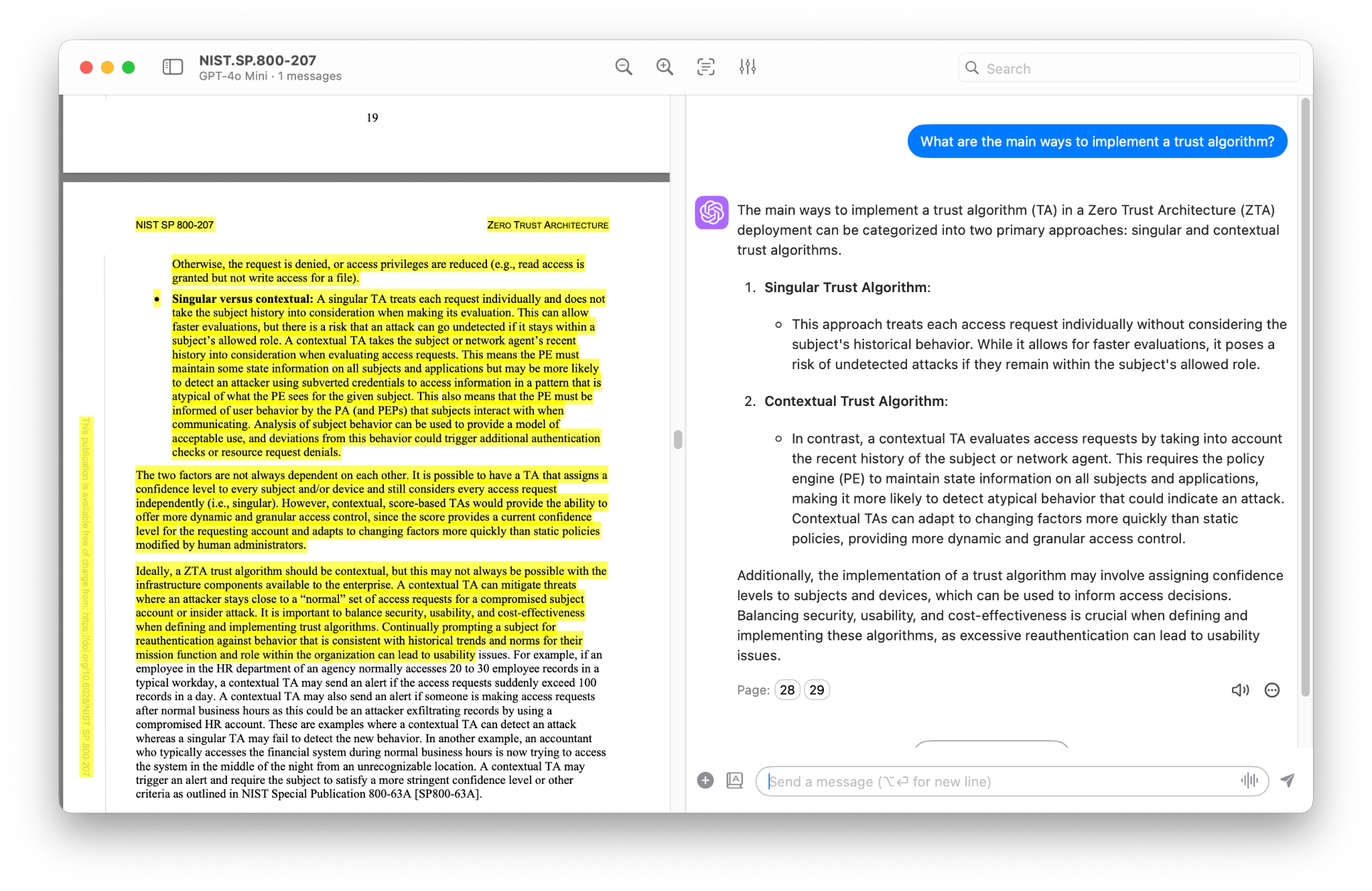
To simplify the process, I use PDF Pals to open the PDF itself. That alone is enough for the app to learn all the context it needs. And from there, I can ask questions or request a summary.
While other chat apps can also process PDFs, I like PDF Pals because it restricts itself to the actual content within the PDF. It even goes further to state and highlight the specific pages where it got its answers.
I’ve traced most disappointing AI responses to just a few habits I catch myself making, especially when I’m in a rush.
When you tell an AI tool to “write an article about cybersecurity,” you’ve left it to guess your audience, goal, length, and tone. It doesn’t even know whether the article will be posted on a blog, Medium, or Substack, all of which have different expectations.
Spend a few extra seconds to provide as much context as necessary. You’ll always get a much stronger first draft.
An explanation you are drafting for your manager will naturally sound different from one you are aiming at a new customer or a beginner in the topic. If you don’t specify this, the AI will try to find a middle ground that may appeal to neither group.
When I want to explain a feature like Apple’s cloud storage, I always specify something like “to a user migrating from Windows to a Mac.”
It’s tempting to ask AI to create an SEO-driven topic and an article draft in one go. But even if you give it all the context it needs, the result will often be average.
I get better results when I treat each step as an independent section of the conversation. This makes the model stay consistent and makes editing much easier.
It’s hard to repeat AI prompt techniques and Mac principles when you are writing a new prompt or providing context with every chat. You won’t stay consistent, and neither will the AI.
Instead, take advantage of the prompting and context features provided by AI Mac apps like BoltAI, TypingMind, Elephas, and PDF Pals.
You don’t need to take a real engineering class to write better prompts. In fact, mine follow the same simple structure that I adjust depending on what I want to accomplish.
You can copy it to write better prompts.
You are an experienced product marketer.
Rewrite this product announcement.
The audience is existing customers. I want to introduce a new feature.
Max 200 words. Use a friendly and conversational tone.
No jargon. Don’t sound overly promotional.
In this case, the full prompt would look like:
You are an experienced product marketer. Rewrite this product announcement for existing customers. I want to introduce a new feature, but I don’t want to sound overly promotional. Less than 200 words, friendly and conversational tone. No jargon.
You don’t need any technical skills or hours of trial and error to know how to use AI prompts on Mac effectively. Just add a role, context, format, and a few constraints to the task description, and you’ll get better results.
To make this even easier, you can use AI apps that import the necessary context and prompts. BoltAI lets you use stored prompts anywhere on your Mac, while TypingMind offers built-in agents and 20+ AI models. Elephas brings your own knowledge into the conversation, and PDF Pals provides the context you need from long documents.
All these apps are available on Setapp, a curated collection of hundreds of premium Mac, iOS, and Web apps. They belong to the Setapp AI+ collection — no API keys needed. The AI Enthusiast plan gives you 6,000 credits a month to use across all AI apps; AI Expert takes it further with 9,000 credits and covers up to four Macs and four iOS devices. Both plans come with a 7-day free trial.
Prompt engineering is the practice of giving an AI model enough direction to produce the quality and type of output you want. A good prompt often includes a goal, context, and a few constraints.
No, you only need to communicate better with the AI. Just explain the task, the audience, context, and format.
BoltAI is the best app for prompt engineering on Mac if you want reusable prompts anywhere on your Mac. TypingMind is a strong alternative as it has agents and 20+ AI models.
Yes, prompt engineering techniques for Mac apply even on browser-based platforms. However, AI chat apps like Bolt, TypingMind, Elephas, and PDF Pals add context automatically to improve the results and save time.
Yes, you can reuse the same prompts on any AI model. Instead of saving on your notes app, you can use BoltAI or TypingMind AI chat apps to maximize prompt engineering for Mac by automatically reusing prompts.
